
Accessing your account: how to sign in and out
To sign in, log in and log out of the Terrestar Solutions portal, simply follow these steps:
Sign in
1. Once your Terrestar Solutions service agreement has been signed, our team will create your account on our client portal.
2. Next, you’ll receive a Welcome email.
3. From the Welcome email, click Complete Registration.
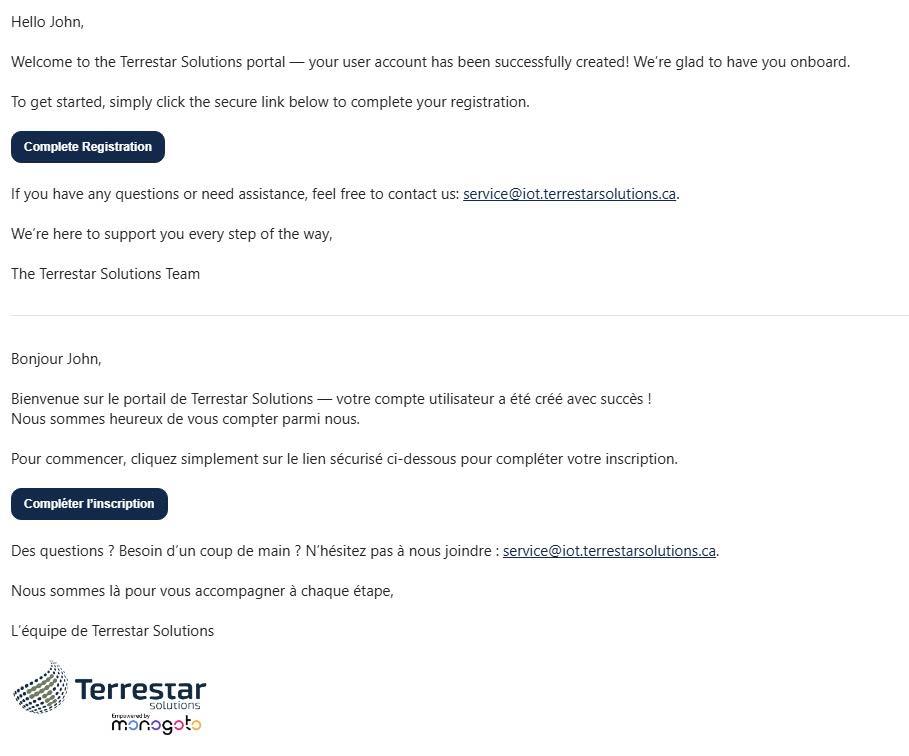
*In case you cannot find the welcome email in your email inbox, please check out your email SPAM folder.
4. Next, you’ll be redirected to the reset password page, where you will set your new password, which must include:
- 8 or more characters
- At least 1 capital letter
- At least 1 lower case letter
- At least 1 number
- At least 1 symbol
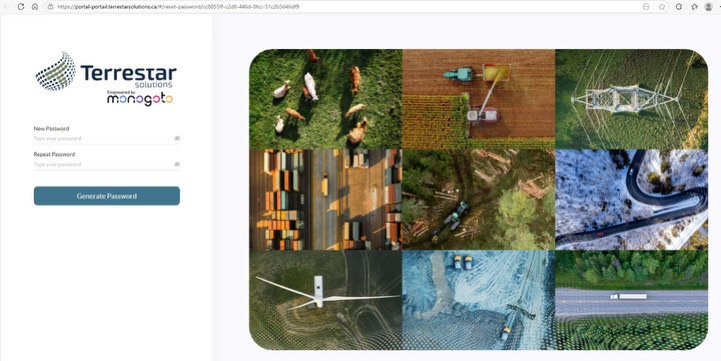
5. Once it’s done, click Generate Password.
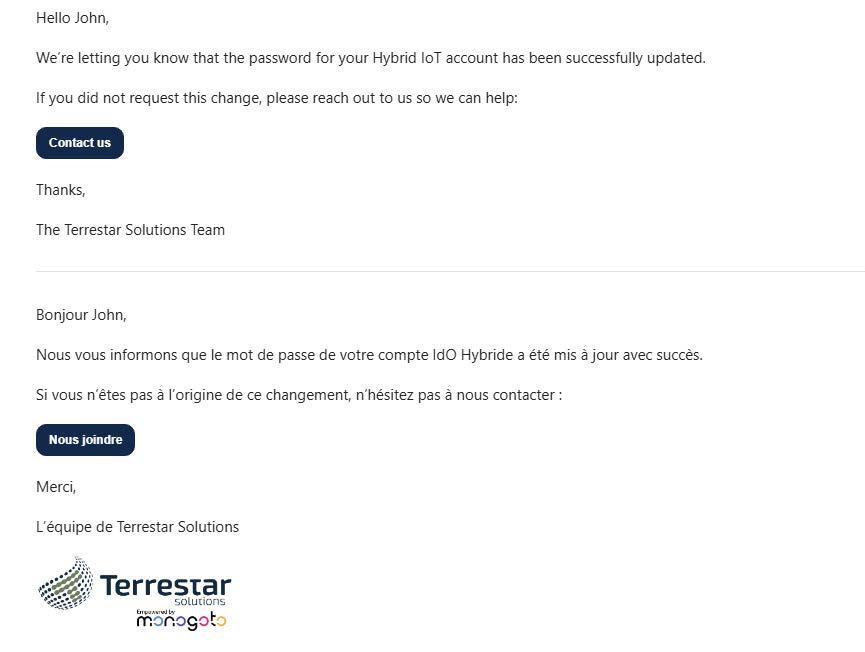
6. You’ll receive an email confirming your change.
Log in
1. Log in to the Terrestar Solutions portal.
2. Enter your credentials and press Receive Code.
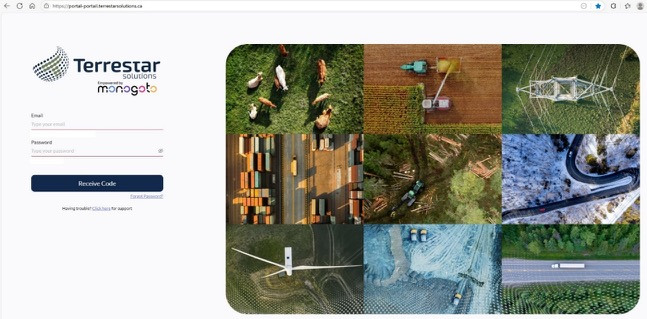
In case you cannot log in to the Terrestar portal platform, please contact our Support Center.
3. Copy the verification code we send to your email address and click Login.
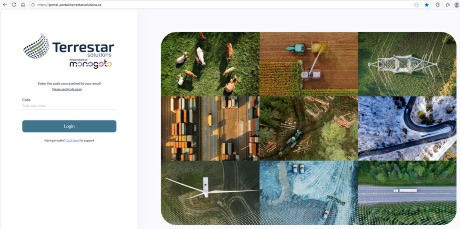
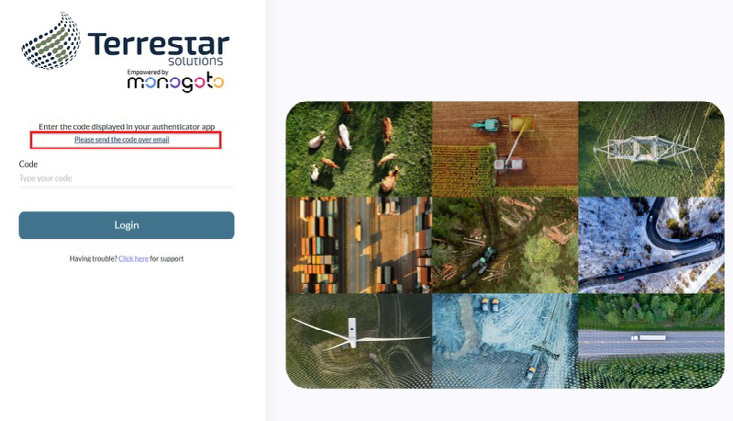
Note: If you have enabled MFA (2 Factor Authentication), please use the code from your authentication app.
You can always click “Please send the code over email” if you don’t have access to an authentication app.
4. On the first portal login, you will need to agree to the terms and conditions of our partner Monogoto.
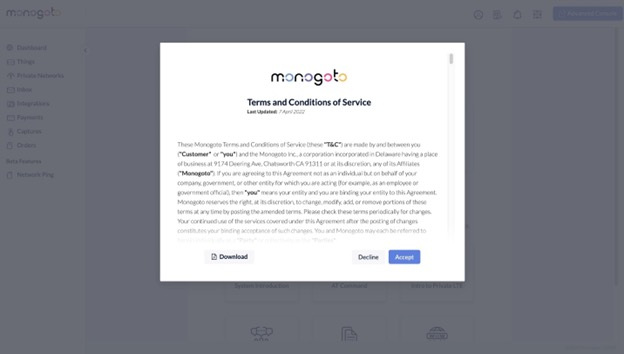
5. You’re all set and ready to order your first Hybrid SIM.

Log out
1. To log out of the Terrestar Solutions portal, click the user profile icon at the top bar.
2. Select Logout.
