
How to modify user accounts
As an administrator of the Terrestar Solutions portal, you can manage other users’ accounts by viewing the list of users, and then editing their information, re-sending activation emails, deactivating accounts or deleting them.
Viewing the list of users
In the user table, you can view and manage your list of current users.
* A user with the same email address (for example: user@company.com) cannot be created in multiple user roles or multiple accounts. Either you insert a new email, or you can use email alias (Depending on your email provider you may be able to add + [alias] to the email address, ex: user+alias@company.com).
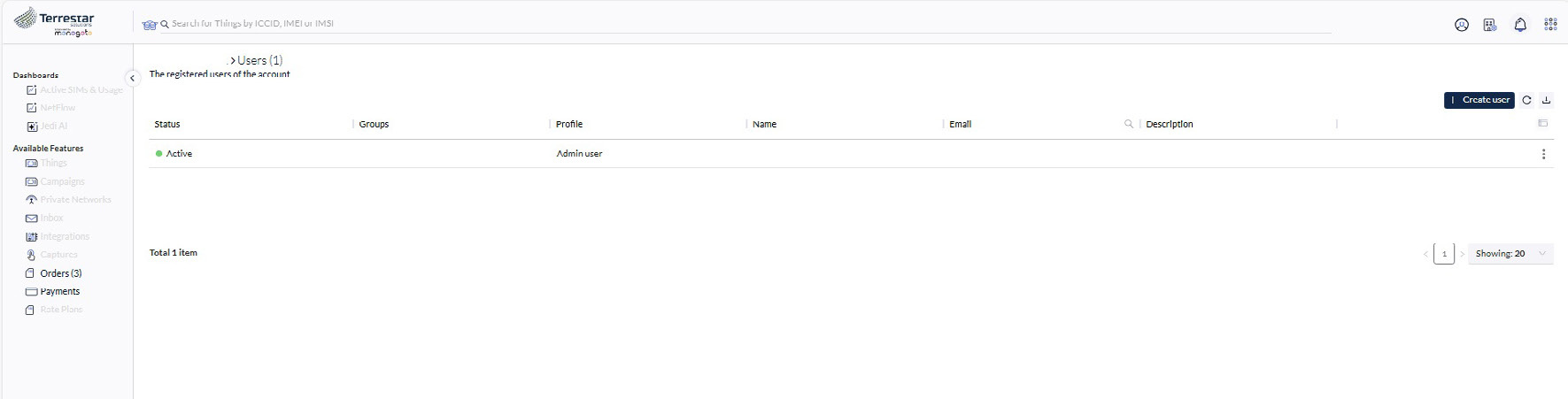
User table information:
- Name - Displays the user’s full name
- Email – Shows the user’s email address
- Profile – Indicates the user’s assigned profile which determines their access permissions
- Description - An optional field for adding supplementary details about the user
- Status - Reflects the user’s current account state:
- Active: The user account is active and fully functional
- Invited: The user has been invited but has not completed their account set up
- Inactive: The user account has been deactivated
Editing a user profile
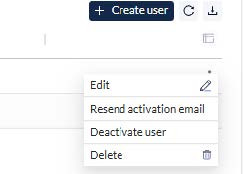
By selecting the three dots at the end of a user’s row, you can access the following actions:
- Edit: allows you to modify the user’s settings
- Resend activation email: sends a new verification email to the user. This can be done if the user was never activated or to reactivate a previously deactivated account
- Deactivate user: temporarily disables the user’s account
- Delete: Permanently removes the user from the system
Deleting or deactivating a user
As the account manager, it’s your responsibility to ensure that user access remains current and accurate. When an employee leaves the organization or transitions to a different role, you can either delete or deactivate their account.
Follow this step-by-step guide to delete or deactivate a user from your account.
1. Click on the Organization button at the top bar and select Users.

2. Select the user from the list and click on the Delete or Deactivate action button.

Note: The deactivation action takes effect immediately. You will need to reactivate this user to regain access.
3. Confirm the user removal.
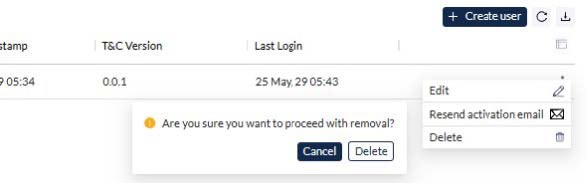
4. The user will be removed from the account.